 msgvault

Deleting Email
msgvault supports a staged deletion workflow: select messages in the TUI or stage them via an AI assistant, review what will be deleted, then execute against Gmail. Deletion only removes messages from Gmail’s servers. Your local archive is never modified. This means you can always search, browse, and export deleted messages from your local copy.
Bulk Deletion via Aggregate Groups
The fastest way to clean up your inbox is through the TUI’s aggregate views. Navigate to the Senders, Domains, or Labels view, find the group you want to remove (e.g., a prolific spam sender or an unwanted mailing list), and press D to stage every message in that group for deletion at once.
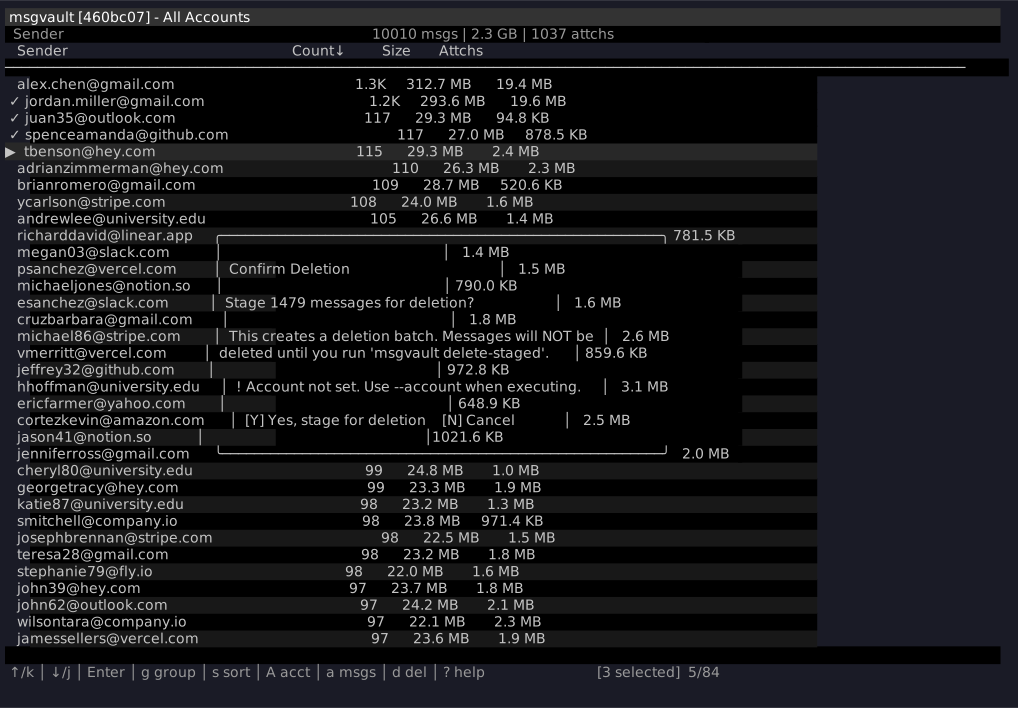
A confirmation dialog shows exactly how many messages will be staged. Nothing is deleted until you explicitly run msgvault delete-staged.
Selective Deletion
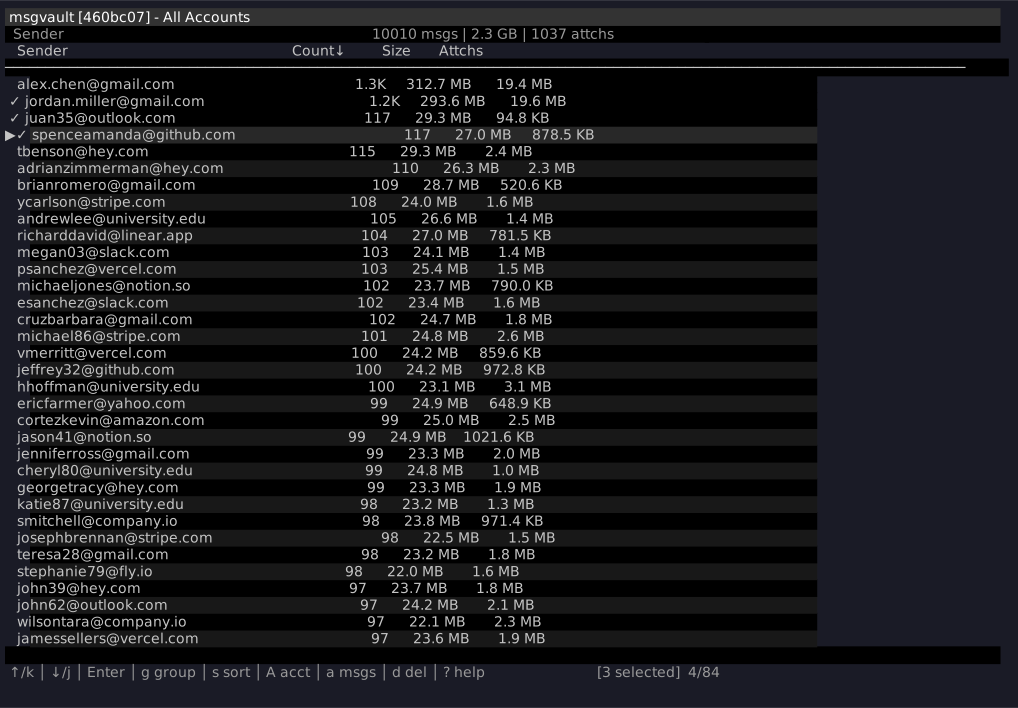
For finer control, drill into any group and use Space to select individual rows, then press d to stage only the selected messages.
Staging via MCP (AI-Assisted)
You can also stage deletions through the MCP server by asking an AI assistant like Claude to find and stage messages for you. For example:
- “Stage all messages from noreply@linkedin.com for deletion”
- “Stage all promotional emails older than 2024-01-01”
The MCP stage_deletion tool creates a local manifest file, the same format as TUI-staged deletions. Nothing is deleted until you run msgvault delete-staged from the CLI. See MCP Server for details.
Staging Steps
From the TUI:
- Launch the TUI:
msgvault tui - Navigate to the view and group you want to clean up
- Press
Dto stage all messages in the current group, or useSpaceto select individual rows and pressd - Review the confirmation dialog and confirm
From an AI assistant:
- Ask the assistant to stage messages matching your criteria
- The assistant calls
stage_deletion, which creates a pending manifest - Review with
msgvault delete-staged --listormsgvault show-deletion <batch-id>
Selection Keys
| Key | Action |
|---|---|
Space | Toggle selection on current row |
d | Stage selected for deletion |
D | Stage all matching current filter |
Reviewing and Executing
Staged deletions create manifests that record exactly which messages will be affected. Review before executing:
# List pending deletion batchesmsgvault delete-staged --list
# Execute deletion (permanent)msgvault delete-staged --account you@gmail.com
Permission Upgrade
When you first run delete-staged, your OAuth token likely only has read and modify permissions. Batch deletion requires full Gmail access (the mail.google.com scope). msgvault detects this automatically and prompts you to upgrade:
======================================================================PERMISSION UPGRADE REQUIRED======================================================================
Batch deletion requires elevated Gmail permissions.
Your current OAuth token was granted with limited permissions thatdon't include batch delete. To proceed, msgvault needs to:
  1. Delete your existing OAuth token  2. Re-authorize with full Gmail access (mail.google.com scope)
This elevated permission allows msgvault to permanently deletemessages in bulk. You can revoke access anytime at:  https://myaccount.google.com/permissions
Upgrade permissions now? [y/N]:
Answering y opens your browser for re-authorization. Answering N cancels cleanly with no side effects. You can revoke the elevated permission at any time from your Google Account permissions page.
If you have a legacy token from before scope tracking was added, msgvault falls back to detecting the insufficient scope from the API response and shows the same prompt.
Resumable Execution
Deletions are resumable. If execution is interrupted (network error, Ctrl+C, scope error), run the same command again to pick up where it left off. Failed messages are tracked individually and retried automatically on the next run before continuing with remaining messages.
Cancelling Deletions
Cancel a specific batch or all pending batches:
# List available batchesmsgvault cancel-deletion
# Cancel a specific batchmsgvault cancel-deletion <batch-id>
# Cancel all pending batchesmsgvault cancel-deletion --allSafety Notes
- Sync operations are always read-only
- Deletion only affects Gmail’s servers, never your local archive
- Deletion requires explicit staging and execution as separate steps
- Manifests provide an audit trail of what was deleted
- Review staged manifests carefully before executing, as deletion is permanent