 msgvault

Setup Guide
Install Release
macOS / Linux:
curl -fsSL https://msgvault.io/install.sh | bashWindows (PowerShell):
powershell -ExecutionPolicy ByPass -c "irm https://msgvault.io/install.ps1 | iex"The installer detects your OS and architecture, downloads the latest release from GitHub Releases, verifies the SHA-256 checksum, and installs the binary.
Verify the installation:
msgvault --helpConda-Forge
# Using pixi (recommended)pixi global install msgvault
# Using condaconda install -c conda-forge msgvault
Build From Source
Requires Go 1.25+ and a C/C++ compiler (GCC or Clang). CGO is required because msgvault uses mattn/go-sqlite3 (SQLite with FTS5) and go-duckdb (Parquet analytics), both of which compile native extensions.
git clone https://github.com/wesm/msgvault.gitcd msgvaultmake installInstalls to ~/.local/bin or $GOPATH/bin. For a debug build use make build, or make build-release for an optimized binary with stripped debug symbols.
Verify the installation:
msgvault --helpConfigure OAuth
Create a Google Cloud project, enable the Gmail API, and download your client_secret.json. See the full OAuth Setup Guide.
Where to put config.toml
msgvault stores all data (config, database, tokens, attachments) in a single directory. The default location depends on your platform:
| Platform | Data directory | Config file |
|---|---|---|
| macOS / Linux | ~/.msgvault/ | ~/.msgvault/config.toml |
| Windows | C:\Users\<you>\.msgvault\ | C:\Users\<you>\.msgvault\config.toml |
To store data on a different drive or location, use the --home flag or set the MSGVAULT_HOME environment variable. If MSGVAULT_HOME is set, paths in the table above are relative to that directory instead:
Per-command (any platform):
msgvault sync --home E:/msgvaultWindows (PowerShell, persistent):
$env:MSGVAULT_HOME = "E:\msgvault"# Or set it permanently:[Environment]::SetEnvironmentVariable("MSGVAULT_HOME", "E:\msgvault", "User")macOS / Linux (persistent):
export MSGVAULT_HOME=/mnt/data/msgvaultThe --home flag takes priority over MSGVAULT_HOME. See Configuration for all options.
Create the config file
macOS / Linux:
[oauth]client_secrets = "/path/to/client_secret.json"Windows: use forward slashes in the path:
[oauth]client_secrets = "C:/Users/you/Downloads/client_secret.json"Add Your Account
msgvault add-account you@gmail.comThis opens your browser for OAuth consent. For headless servers, see the copy-token workflow.
If you plan to deploy to a remote host (NAS, cloud VM, etc.), run msgvault setup after this step to generate a ready-to-run deployment bundle with Docker Compose and remote configuration. See the Remote Deployment guide.
Add an IMAP Account
To sync mail from a non-Gmail provider (Fastmail, Outlook, Yahoo, self-hosted, etc.), use add-imap:
msgvault add-imap --host imap.fastmail.com --username you@fastmail.comYou will be prompted for your password (or set MSGVAULT_IMAP_PASSWORD / pipe via stdin for scripting). The command tests the connection before saving credentials. Use an app-specific password if your provider supports them.
Common IMAP servers:
| Provider | Host | Port | Notes |
|---|---|---|---|
| Fastmail | imap.fastmail.com | 993 | App password recommended |
| Outlook / Hotmail | outlook.office365.com | 993 | Use add-o365 for OAuth (recommended); or app password with 2FA |
| Yahoo | imap.mail.yahoo.com | 993 | App password required |
| iCloud | imap.mail.me.com | 993 | App-specific password required |
| Gmail (IMAP) | imap.gmail.com | 993 | Use add-account for Gmail API instead |
| Self-hosted | your server hostname | 993 |
For STARTTLS connections (port 143), add --starttls:
msgvault add-imap --host mail.example.com --username you@example.com --starttlsAfter adding the account, sync it the same way as a Gmail account:
msgvault sync-fullIMAP accounts are stored in the same database as Gmail accounts. All tools (TUI, search, MCP, web server) work with IMAP messages the same way.
Sync Email
# Test with a small batch firstmsgvault sync-full you@gmail.com --limit 100
# Or sync a specific date rangemsgvault sync-full you@gmail.com --after 2024-01-01 --before 2024-02-01
# Sync everything (no limit)msgvault sync-full you@gmail.com
What to Expect
The initial full sync downloads every message and attachment from Gmail, so it can take a while. In testing we have observed roughly 50 messages per second on fast internet, but the Gmail API has per-user quotas that may throttle throughput further. An account with hundreds of thousands of messages and large attachments may take several hours; an account with millions of messages could take significantly longer. We recommend starting with --limit or a date range to verify everything works before kicking off the full run.
The good news: syncs are resumable (see below), and once the initial sync is complete, incremental syncs only fetch new and changed messages, which is much faster.
Disk Usage
msgvault stores raw MIME data compressed with zlib (typically 3-5x compression). As a rough guide:
| Gmail usage (Settings → Storage) | SQLite DB on disk | Parquet cache | Attachments |
|---|---|---|---|
| 5 GB | ~1-2 GB | < 10 MB | varies |
| 25 GB | ~5-10 GB | < 50 MB | varies |
| 100 GB | ~20-40 GB | < 100 MB | varies |
Gmail’s “storage used” number includes attachments at full size. Your on-disk footprint depends on the ratio of message text to attachments:
- Message metadata + bodies go into the SQLite database, compressed ~3-5x.
- Attachments are extracted and stored as-is (PDFs, images, etc. are already compressed). Identical attachments across messages are deduplicated by content hash.
- Parquet analytics cache is a lightweight projection for the TUI — typically a few MB even for large archives.
Use --limit or a date range for your first sync to gauge the ratio for your mailbox before committing to a full sync. After syncing, msgvault stats shows the actual sizes. See Data Storage for details on compression and storage layers.
Full Sync Flags
| Flag | Description |
|---|---|
--limit N | Download at most N messages |
--after YYYY-MM-DD | Only messages after this date |
--before YYYY-MM-DD | Only messages before this date |
--query | Gmail search query filter |
--noresume | Start fresh instead of resuming |
--verbose | Show detailed progress |
Incremental Sync
After the initial full sync, use incremental sync for efficient updates. It uses the Gmail History API to fetch only new and changed messages:
msgvault sync you@gmail.com
# Or sync all accounts at oncemsgvault sync
Resumable Checkpoints
If a sync is interrupted (network error, Ctrl+C), run the same command again. It resumes from the last checkpoint:
# This resumes automaticallymsgvault sync-full you@gmail.com --after 2024-01-01 --before 2024-02-01Checkpoint data is stored in the sync_checkpoints table. Use --noresume to discard checkpoints and start over.
Rate Limiting
msgvault uses token bucket rate limiting to respect Gmail API quotas. The default is 5 requests per second, configurable in config.toml:
[sync]rate_limit_qps = 5Reduce this value if you encounter rate limit errors during large syncs.
Safety
Sync operations are read-only. They use only messages.list and messages.get Gmail APIs. No write operations are performed. Your Gmail data remains untouched.
Explore
# Search your archivemsgvault search from:alice@example.com
# Launch the interactive TUImsgvault tui
# View statsmsgvault stats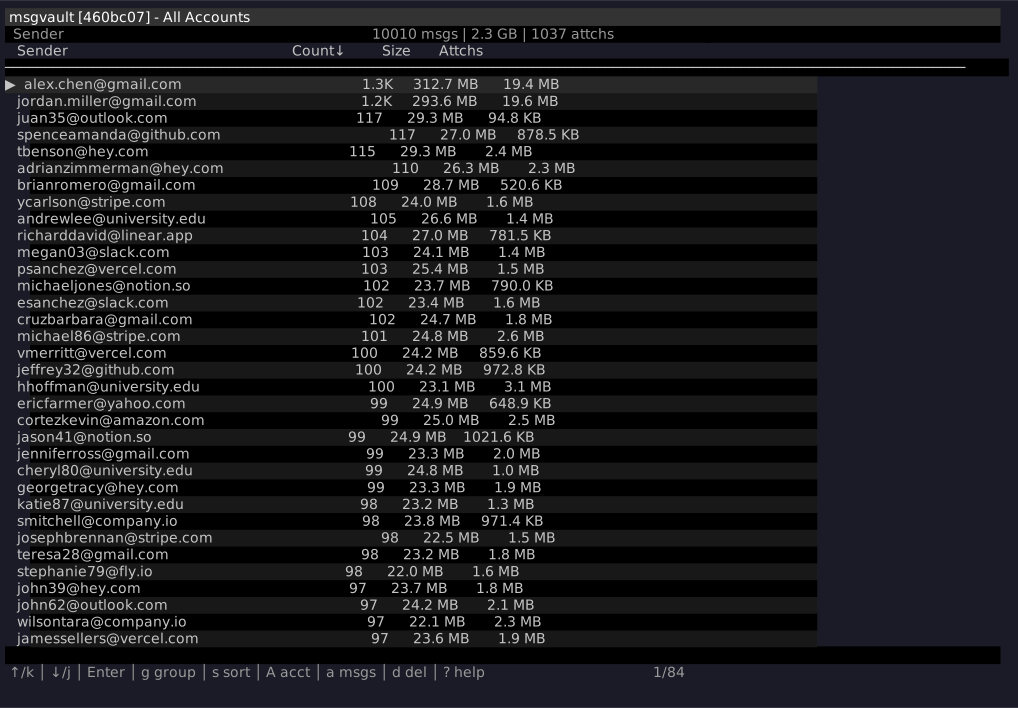
See Searching and Interactive TUI for more.