 msgvault

Setup Guide
Install Release
macOS / Linux:
curl -fsSL https://msgvault.io/install.sh | bashWindows (PowerShell):
powershell -ExecutionPolicy ByPass -c "irm https://msgvault.io/install.ps1 | iex"The installer detects your OS and architecture, downloads the latest release from GitHub Releases, verifies the SHA-256 checksum, and installs the binary.
Verify the installation:
msgvault --helpConda-Forge
# Using pixi (recommended)pixi global install msgvault
# Using condaconda install -c conda-forge msgvault
Build From Source
Requires Go 1.25+ and a C/C++ compiler (GCC or Clang). CGO is required because msgvault uses mattn/go-sqlite3 (SQLite with FTS5) and go-duckdb (Parquet analytics), both of which compile native extensions.
git clone https://github.com/wesm/msgvault.gitcd msgvaultmake installInstalls to ~/.local/bin or $GOPATH/bin. For a debug build use make build, or make build-release for an optimized binary with stripped debug symbols.
Verify the installation:
msgvault --helpConfigure OAuth
Create a Google Cloud project, enable the Gmail API, and download your client_secret.json. See the full OAuth Setup Guide.
Where to put config.toml
msgvault stores all data (config, database, tokens, attachments) in a single directory. The default location depends on your platform:
| Platform | Data directory | Config file |
|---|---|---|
| macOS / Linux | ~/.msgvault/ | ~/.msgvault/config.toml |
| Windows | C:\Users\<you>\.msgvault\ | C:\Users\<you>\.msgvault\config.toml |
To store data on a different drive or location, use the --home flag or set the MSGVAULT_HOME environment variable. If MSGVAULT_HOME is set, paths in the table above are relative to that directory instead:
Per-command (any platform):
msgvault sync --home E:/msgvaultWindows (PowerShell, persistent):
$env:MSGVAULT_HOME = "E:\msgvault"# Or set it permanently:[Environment]::SetEnvironmentVariable("MSGVAULT_HOME", "E:\msgvault", "User")macOS / Linux (persistent):
export MSGVAULT_HOME=/mnt/data/msgvaultThe --home flag takes priority over MSGVAULT_HOME. See Configuration for all options.
Create the config file
macOS / Linux:
[oauth]client_secrets = "/path/to/client_secret.json"Windows — use forward slashes in the path:
[oauth]client_secrets = "C:/Users/you/Downloads/client_secret.json"Add Your Account
msgvault add-account you@gmail.comThis opens your browser for OAuth consent. For headless servers, see the copy-token workflow.
If you plan to deploy to a remote host (NAS, cloud VM, etc.), run msgvault setup after this step to generate a ready-to-run deployment bundle with Docker Compose and remote configuration. See the Remote Deployment guide.
Add an IMAP Account
To sync mail from a non-Gmail provider (Fastmail, Outlook, Yahoo, self-hosted, etc.), use add-imap:
msgvault add-imap --host imap.fastmail.com --username you@fastmail.comYou will be prompted for your password. The command tests the connection before saving credentials. Use an app-specific password if your provider supports them.
Common IMAP servers:
| Provider | Host | Port | Notes |
|---|---|---|---|
| Fastmail | imap.fastmail.com | 993 | App password recommended |
| Outlook / Hotmail | outlook.office365.com | 993 | App password required with 2FA |
| Yahoo | imap.mail.yahoo.com | 993 | App password required |
| iCloud | imap.mail.me.com | 993 | App-specific password required |
| Gmail (IMAP) | imap.gmail.com | 993 | Use add-account for Gmail API instead |
| Self-hosted | your server hostname | 993 |
For STARTTLS connections (port 143), add --starttls:
msgvault add-imap --host mail.example.com --username you@example.com --starttlsAfter adding the account, sync it the same way as a Gmail account:
msgvault sync-fullIMAP accounts are stored in the same database as Gmail accounts. All tools (TUI, search, MCP, web server) work with IMAP messages the same way.
Sync Email
# Test with a small batch firstmsgvault sync-full you@gmail.com --limit 100
# Or sync a specific date rangemsgvault sync-full you@gmail.com --after 2024-01-01 --before 2024-02-01
# Sync everything (no limit)msgvault sync-full you@gmail.com
What to Expect
The initial full sync downloads every message and attachment from Gmail, so it can take a while. In testing we have observed roughly 50 messages per second on fast internet, but the Gmail API has per-user quotas that may throttle throughput further. An account with hundreds of thousands of messages and large attachments may take several hours; an account with millions of messages could take significantly longer. We recommend starting with --limit or a date range to verify everything works before kicking off the full run.
The good news: syncs are resumable (see below), and once the initial sync is complete, incremental syncs only fetch new and changed messages, which is much faster.
Full Sync Flags
| Flag | Description |
|---|---|
--limit N | Download at most N messages |
--after YYYY-MM-DD | Only messages after this date |
--before YYYY-MM-DD | Only messages before this date |
--query | Gmail search query filter |
--noresume | Start fresh instead of resuming |
--verbose | Show detailed progress |
Incremental Sync
After the initial full sync, use incremental sync for efficient updates. It uses the Gmail History API to fetch only new and changed messages:
msgvault sync you@gmail.com
# Or sync all accounts at oncemsgvault sync
Resumable Checkpoints
If a sync is interrupted (network error, Ctrl+C), run the same command again. It resumes from the last checkpoint:
# This resumes automaticallymsgvault sync-full you@gmail.com --after 2024-01-01 --before 2024-02-01Checkpoint data is stored in the sync_checkpoints table. Use --noresume to discard checkpoints and start over.
Rate Limiting
msgvault uses token bucket rate limiting to respect Gmail API quotas. The default is 5 requests per second, configurable in config.toml:
[sync]rate_limit_qps = 5Reduce this value if you encounter rate limit errors during large syncs.
Safety
Sync operations are read-only. They use only messages.list and messages.get Gmail APIs. No write operations are performed. Your Gmail data remains untouched.
Explore
# Search your archivemsgvault search from:alice@example.com
# Launch the interactive TUImsgvault tui
# View statsmsgvault stats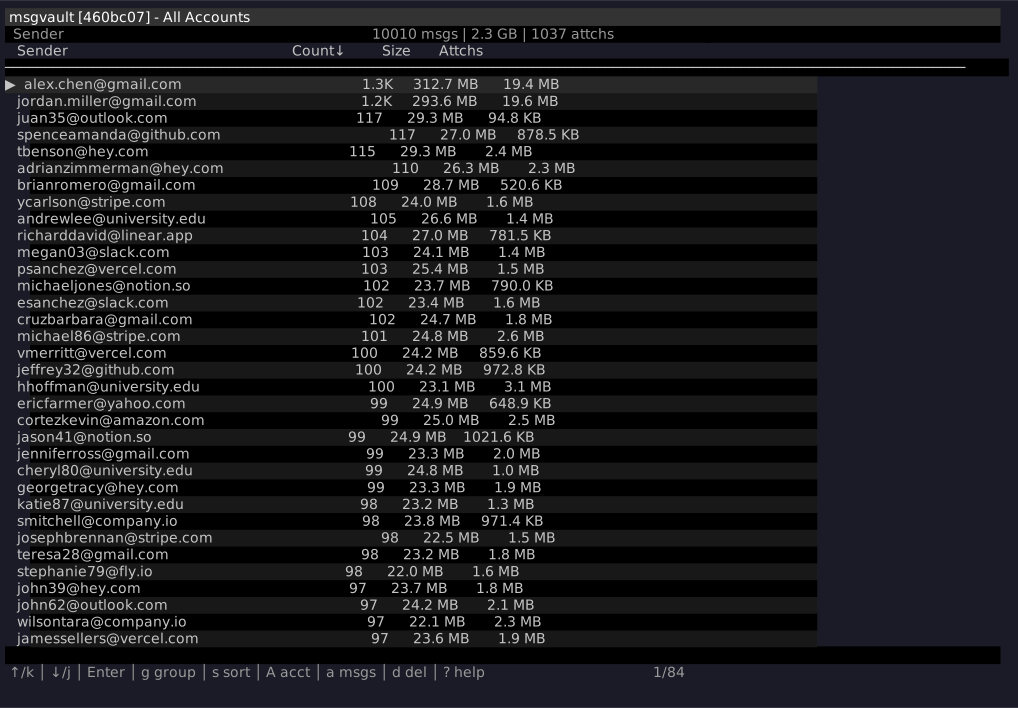
See Searching and Interactive TUI for more.